

How to use OCR
In this section, we are going to see how we can use OCR. Suppose we have an image and we have to extract the text in it. In such a scenario, OCR becomes very handy.
In the following example, we are going to use a random Google image with some text in it, as follows:
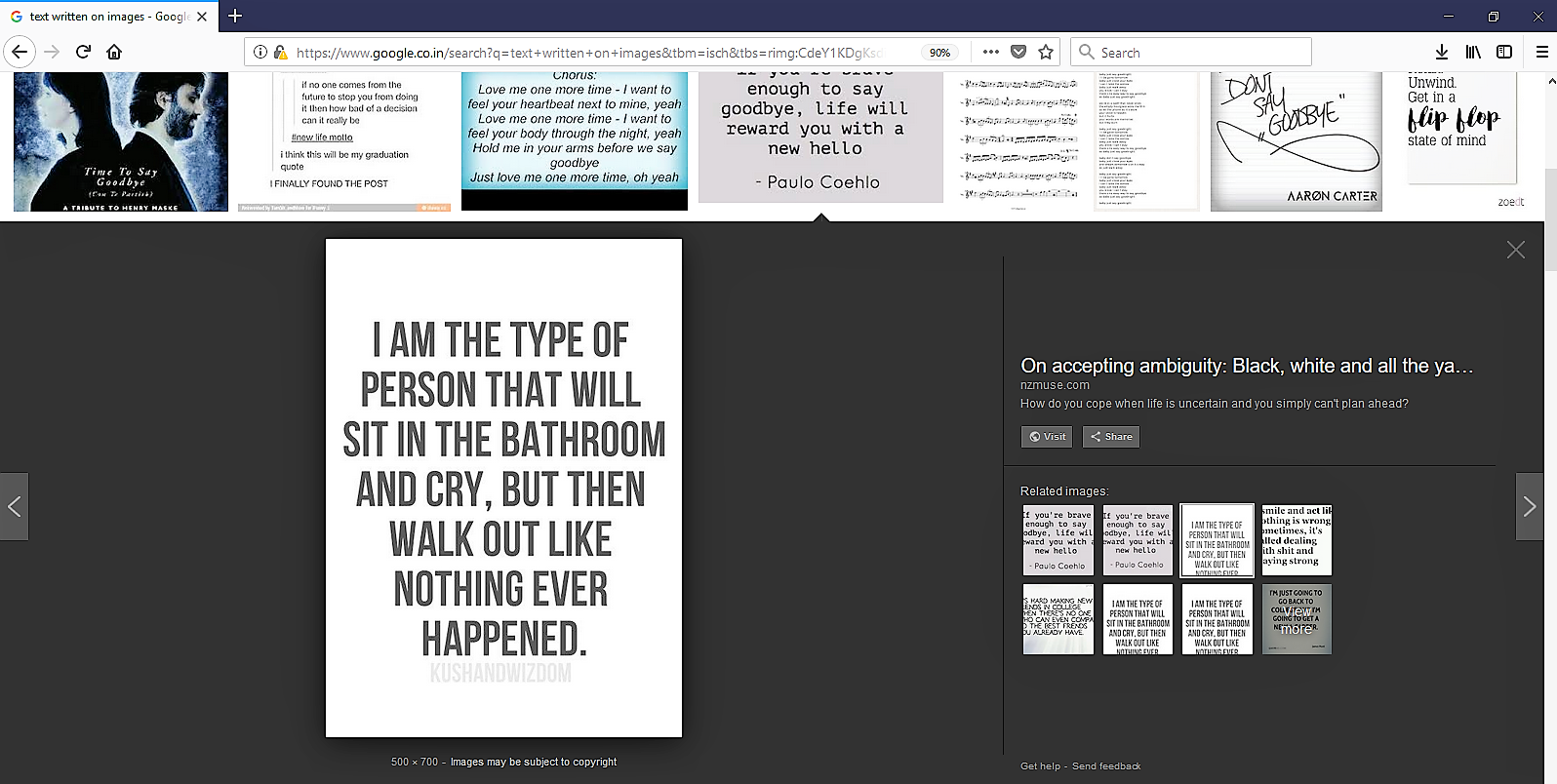
To extract text from the previous image, perform the following steps:
- Open UiPath Studio and click on a
Blankproject. Give it a meaningful name. On the Designer panel, drag and drop aFlowchartactivity. - Next, drag and drop a
Get OCR Textactivity from theActivitiespanel and set it as the start node. Double-click on it and click on theIndicate on screenoption. Choose the specific area from which you want to extract the text from the image. In our case, we are using an image that we have searched for on Google.
- Now, click on the
Textproperty of theGet OCR Textactivity. A window will pop up as shown in the following screenshot. Right-click inside the window and chooseCreate Variable. Give it a meaningful name...