





























































Using parameters to control the animation flow
You can define a set of parameters in an Animator Controller and use them to control the transitions between animation states in Mecanim. In this recipe, we will show how to use parameters for transition conditions and use scripts to set values of those parameters in runtime.
Getting ready
Before we start, you should prepare an Animator Controller with at least one transition between animation states. The controller should be assigned to a character (its Animator component) placed in a scene. You can also use the provided example Unity project and go to the Chapter 01 Working with animations\Recipe 05 Using parameters to control the animation flow directory. You will find an Example.unity scene there. There is a Warrior game object in the scene's Hierarchy. If you run the game and press the space bar, the Warrior will make a wave gesture. You can select the Warrior and open his Animator Controller. If you click on the Idle | Wave transition, you will be able to see the transition condition.
How to do it...
To use parameters for controlling state transitions, follow these steps:
- Open the
Animator Controllerasset. - Find the
Parameterstab in the upper left corner of theAnimatorwindow and click on it. - Click on the plus icon in the
Parameterstab to add a new parameter. - Choose the
Triggertype for the parameter. - Type a name of the newly created parameter (in the provided example, the name of the parameter is
Wave). - Click on the transition between states you want to use parameters for. In the provided example, it is the transition between
IdleandWaveanimation states.Idleis the default state. - Go to the
Inspectortab and find theConditionssection.
- Click on the plus icon to add a new condition. If you have only one parameter, it will be chosen as the condition automatically. If you have more parameters, you need to choose the proper one from a drop-down list.
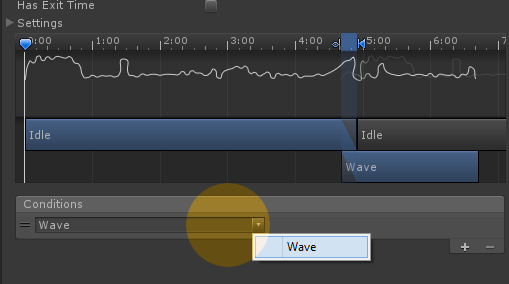
- If you want to make an immediate transition between your animation states, make sure to disable the
Has Exit Timeoption, found above theSettingsfoldout. - Your transition will take place only when its conditions are met. You need to set the parameter using scripts.
- To create a new C# script, click on the right mouse button in the
Project Viewand selectCreate|C# Script. Name the script as you wish (in the provided example, it's calledWave, the same as the parameter it sets). - Open the script and write the following:
      using UnityEngine;
      using System.Collections;

      public class Wave : MonoBehaviour {
      //The anim variable is used to store the reference
      //to the Animator component of the character.
      private Animator anim;
      void Start () {
      //We get the component and assign it to
      //the anim variable when the game starts
      anim = GetComponent<Animator>();
      }
      void Update () {
      //We check if player pressed the spacebar
      if (Input.GetKeyDown(KeyCode.Space))
      {
      /*We cal the SetTrigger() function on the
      Animator component stored in the anim
      variable. The function requires one
      parameter - the name of the trigger
      parameter set in our Animator Controller
      ("Wave" in our example). Make sure to match
      it with the name of the parameter you've
      created in your Animator Controller*/
      anim.SetTrigger("Wave");
      }
      }
} - Make sure your class name is the same as the file name of the script, as it won't compile otherwise.
- Assign the script to the character, to the same
Transformthat has theAnimatorcomponent with yourAnimator Controllerattached. Play the game and press the space bar; you should see your character switch to the next animation state.
How it works...
You can use several types of parameters and corresponding script functions to set them:
- Trigger: This is the simplest parameter. It is set to true with the
SetTrigger(string name)function called on theAnimatorcomponent object. It is reset by theAnimator Controllerafter it is consumed (used) by a transition. Thestring nameparameter of the function has to match your trigger parameter name set in theAnimator Controller. - Int: This is an integer parameter. When you use it, you have to specify a logical comparison in the condition. The transition will only occur if the value of the parameter meets the comparison condition with a given number. You can use the
Equal,Greater,Less, andNot Equaloptions to compare the value of your parameter with the given number. Integer type parameters are set with theSetInteger(string name, int value)function. Thestring nameparameter needs to match the parameter name set in the controller. Theint valueparameter is the value to set the controller parameter to. - Float: This is a float parameter. It works the same as the integer type, but uses floating point numbers instead of integers. It is set using the
SetFloat(string name, float value)function. - Bool: This is a Boolean parameter. The condition can check if the parameter is true or false. The value of the parameter is set with the
SetBool(string name, bool value)function.
There's more...
- You can add more than one condition to a state transition by clicking on the plus icon in the
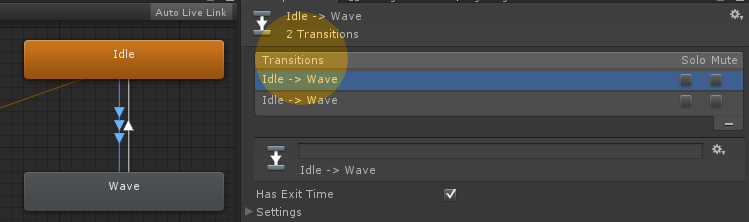
Conditionssection in the transitionInspector. For the transition to occur, all its conditions have to be met. It works as logical AND for the conditions. - You can also create more than one transition between the same states. To do this, right-click on the state you want to transition from and choose the
Make Transitionoption, and then select the state you already have a transition to. A multi-transition is marked with three arrows instead of one. If the conditions of any of the transitions are met, the transition will occur. You can use it as logical OR for transition conditions.
- If you have more than one transition between states, you can only edit one of them at a time. To edit a transition, select it in the
Transitionssection of theInspector.
- If you want to remove a transition, select it in the
Inspectorand click on the minus icon, or select it in theAnimator Controllerand press Delete on the keyboard. Pressing Delete removes all the transitions.
- If you want to remove a condition from a transition, select it in the
Inspectortab and click on the minus icon. To select a condition, you need to click on the handle to the left of the condition drop-down list (the handle looks like a = sign). - If you want to remove a parameter from the
Animator Controller, you need to click on the handle on the left of the parameter and press the Delete button on the keyboard. You can also right-click on the parameter and choose theDeleteoption from the context menu.


