





























































Using animations from multiple assets
At times it is very convenient to separate animations to multiple assets. A common scenario is to have rigged models separated from animations or different animation types separated from each other (combat from movement, movement from actions, actions from cut scenes, and so on). This recipe shows how to do it for both Humanoid and Generic rigs.
Getting ready
Before we start, you should prepare and import at least two assets containing animations. If you are using a Generic rig, make sure to have the same rig in both assets. You can also use the provided example Unity project and go to the Chapter 01 Working with animations\Recipe 06 Using animations from multiple assets. There is a scene called Example.unity file there. In the scene Hierarchy you can find a Character game object. It has an attached Animator Controller in which you can find two animations: Idle and Wave. In the Rigs directory, you will find the Character.fbx asset containing only a rigged character along with the Idle.fbx and Wave.fbx assets containing the corresponding animations.
Note
If you are exporting FBX files from Blender, make sure to disable the Add Leaf Bones option in the exporter. If you are exporting just the rig and animations (without a mesh), add an empty object to the scene. If you will not do this, your rig could be messed up a bit after import.
How to do it...
To use animations from multiple assets, you need to follow these steps:
- Import the files to Unity.
- If you are using the Generic rig, you have to set the
Avatar DefinitiontoCreate From This Modelon your character (or reference character if you plan to have multiple characters with the same rig). For each imported animation asset, set theAvatar DefinitiontoCopy From Other Avatarand choose the avatar of your character or reference character. To do so, you need to unfold the character asset, find the avatar, and drag and drop it to theSourcefield in theInspectortab.
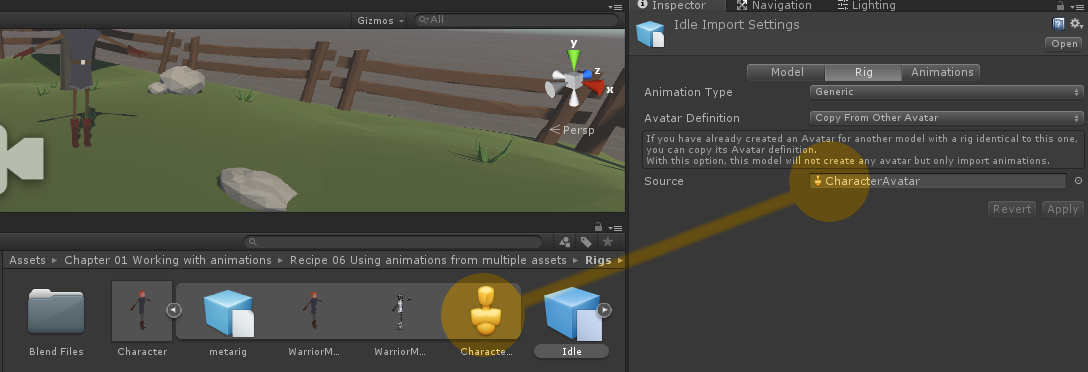
- If you are using a
Humanoidrig, you don't have to copy theAvatar Definition(you still can if your rigs are exactly the same; that way you will have fewer avatars in your project, making it easier to find the ones you need). - Create or open an
Animator Controller. - Assign animations from different files and build transitions between them.
- Run the game to see the animations work.
How it works...
All Generic rigs can use animations from multiple assets that share the same Avatar Definition. To share the same Avatar Definition, Generic rigs have to have exactly the same rigs (the same hierarchy, the same bone names and transforms). All Humanoid rigs can use animations from multiple assets that are also set to Humanoid. Additionally, they don't need to have the same rigs because Unity automatically retargets all humanoid animations.


