





























































Creating and assigning an Animator Controller
Animator Controllers are state machines (graphs) responsible for controlling the flow of animations of any animated object in the game. The same Animator Controller asset can be used by multiple objects or characters. Unity will create an independent runtime copy of the asset for each animated object it is assigned to.
Getting ready
As always, you should have a rigged and animated character ready before we start. Import it into Unity, choose the proper rig type, and put it into a scene. You can download the example Unity project and go to the Chapter 01 Working with animations\Recipe 03 Creating and assigning an animator controller directory. There is a scene called Example.unity there. If you open it, you'll find a Sheep character in the Hierarchy. It has an Animator Controller already created and assigned. You can also use the Quadruped.fbx file from the Chapter 01 Working with animations\Recipe 03 Creating and assigning an animator controller\Rigs directory to follow the recipe step by step.
How to do it...
To create and assign an Animator Controller, follow these steps:
- Navigate to the
Project View(any directory in theAssetsfolder) and press the right mouse button. - Choose
Create|Animator Controllerfrom the menu. A controller asset will be created. You can name it as you wish. - Double-click on the created controller. An
Animatortab will appear. It will show the current selectedAnimator Controller.
- Here you can add the first animation. Navigate to your imported character in the
Project View. Unfold it and drag and drop one of the imported animations into theAnimatorwindow. A new state will be created and will be colored orange, showing that this is the default animation state—the state from which your graph starts.
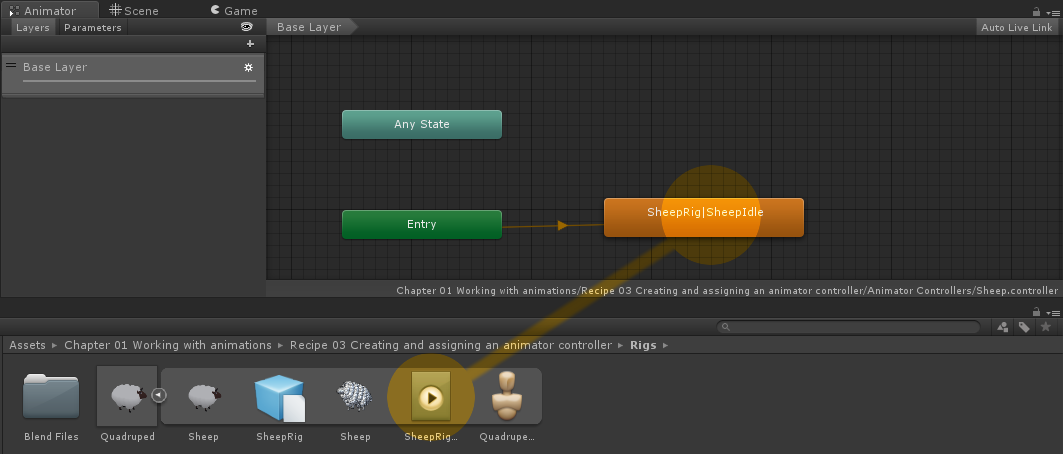
- Navigate to your character on the scene and select it.
- Find the Animator component in the
Inspectortab. All animated objects have anAnimatorcomponent added automatically. - Find the
Controllerslot in theAnimatorcomponent inspector. - Drag and drop your
Animator Controllerasset into theControllerslot of theAnimatorcomponent. - Run the game to see your character play the default state animation of your Animator Controller. If the animation is not looped, it will be played just once and then the character will freeze.
- You can also select your character in runtime and navigate to the
Animatortab to see what animation state the character is currently in. Current animation state will have a blue progress bar displayed.
How it works...
Every animated object in Unity uses an Animator component and an Animator Controller asset. The component is responsible for playing animations in runtime. It has a number of parameters that we have to set or we can use to tweak the component's functionality:
Controller: This is the field we have to attach the Animator Controller asset to. It determines which animation graph the Animator component will use.
Avatar: In Unity,Avatarsare rig definitions. For instance, if we have multiple files containing animations with the sameGenericrig, we should use the sameAvatarfor all of them. You can find more information about it in the Using animations from multiple assets recipe.Apply Root Motion: With this checkbox, we can turn the root motion on and off. It can be useful when we have animations with root motion but don't want to use the root motion definition for a given character.Update Mode: This parameter tells Unity in which update the animations should be evaluated. TheNormaloption makes the animations synchronized with the normalUpdate()call, theAnimate Physicsoption synchronizes animations with the physicsFixedUpdate()call, and theUnscaled Timeoption synchronizes the animation with the normalUpdate()call, but disables animation time scaling (the animation is played with 100 percent speed regardless of theTime.timeScalevariable value).Culling Mode: This parameter tells Unity when to turn off the animation playback on a given Animator. TheAlways Animateoption makes the Animator always play animations (event when off-screen), theCull Update Transformsoption culls Retarget and IK Transforms when the Animator is not visible on screen, and theCull Completelyoption disables the animation completely when the Animator is not visible on screen.
The Animator Controller asset stores a graph of animations (animation states) and defines the rules of switching between them, blending them, and so on. The controller (asset) is attached to the component's Controller field (the component is attached to a character prefab or a character placed in the scene). Many objects or characters can share the same Animator Controller if they use the same animations (have the same rigs or are humanoid characters).
See also
If you want to learn how to create animation graphs and control their flow, see the next two recipes: Creating animation transitions in Animator Controller and Using parameters to control the animation flow.


