

Making it endless
Now that we have a foundation, let's now make it so that we can continue running instead of stopping after a short time:
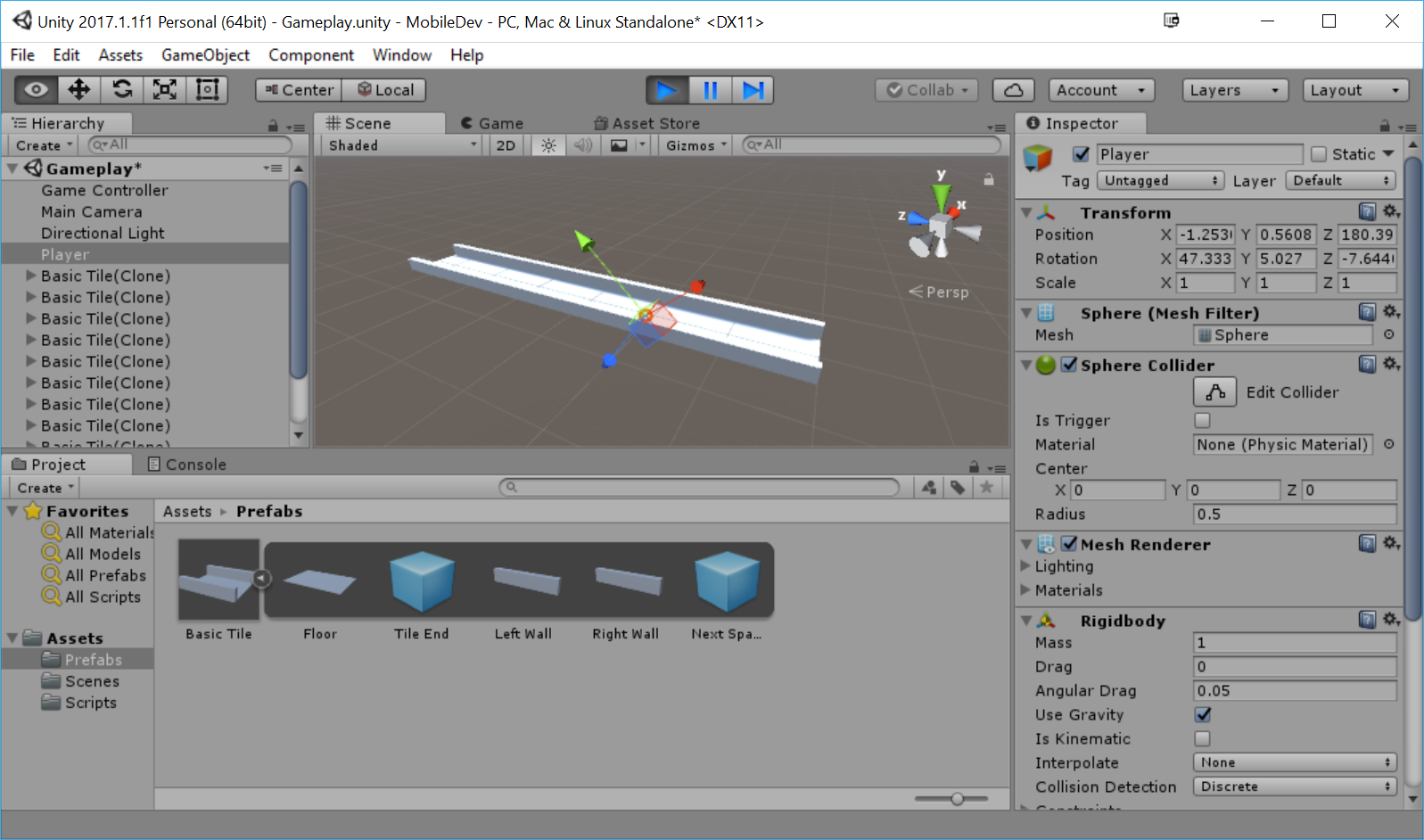
- To start off with, we have our prefab, so we can delete the original
Basic Tilein theHierarchywindow by selecting it and then pressing the Delete key.
- We need to have a place to create all of these tiles and potentially manage information for the game, such as the player's score. In Unity, this is typically referred to as a
GameController. From theProjectwindow, go to theScriptsfolder and create a new C# script calledGameController. - Open the script in your IDE, and use the following code:
using UnityEngine;

/// <summary>
/// Controls the main gameplay
/// </summary>

public class GameController : MonoBehaviour
{
    [Tooltip("A reference to the tile we want to spawn")]
    public Transform tile;

    [Tooltip("Where the first tile should be placed at")]
    public Vector3 startPoint = new Vector3(0, 0, -5);

    [Tooltip("How many tiles should we create in advance")]
    [Range(1, 15)]
    public int initSpawnNum = 10;

    /// <summary>
    /// Where the next tile should be spawned at.
    /// </summary>
    private Vector3 nextTileLocation;

    /// <summary>
    /// How should the next tile be rotated?
    /// </summary>
    private Quaternion nextTileRotation;

    /// <summary>
    /// Used for initialization
    /// </summary>

    void Start()
    {
        // Set our starting point
        nextTileLocation = startPoint;
        nextTileRotation = Quaternion.identity;

        for (int i = 0; i < initSpawnNum; ++i)
        {
            SpawnNextTile();
        }
    }

    /// <summary>
    /// Will spawn a tile at a certain location and setup the next position
    /// </summary>

    public void SpawnNextTile()
    {
        var newTile = Instantiate(tile, nextTileLocation,
                                  nextTileRotation);

        // Figure out where and at what rotation we should spawn
        // the next item
        var nextTile = newTile.Find("Next Spawn Point");
        nextTileLocation = nextTile.position;
        nextTileRotation = nextTile.rotation;
    }
}
This script will spawn a number of tiles, one after another, based on the tile and initSpawnNum properties.
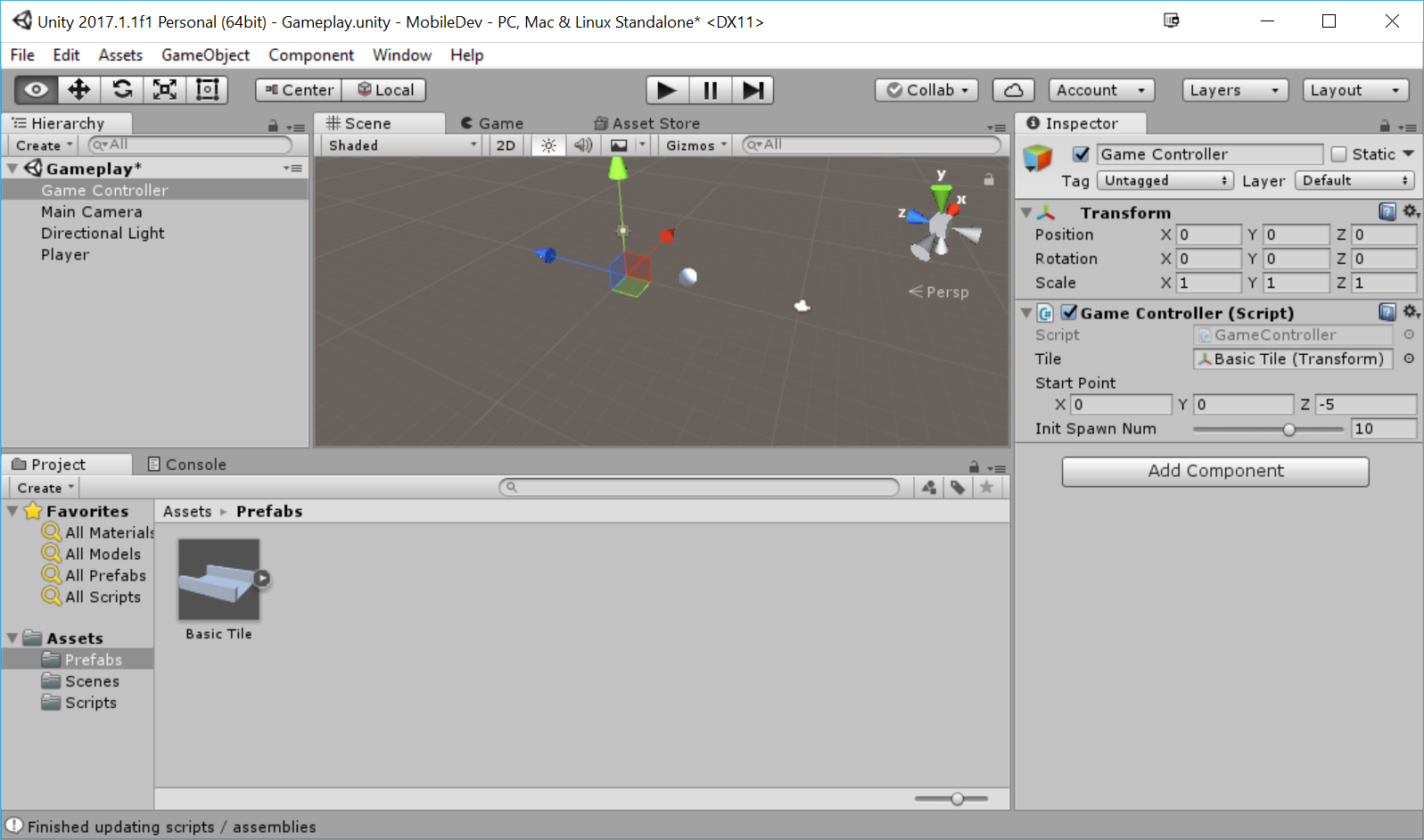
- Save your script and dive back into Unity. From there, create a new
Emptygame object and name itGame Controller. Drag and drop it to the top of theHierarchywindow. For clarity's sake, go ahead and reset the position if you want to. Then, attach theGame Controllerscript to the object and then set theTileproperty by dragging and dropping theBasic Tileprefab from theProjectwindow into theTileslot:
- Save your scene and run the project:
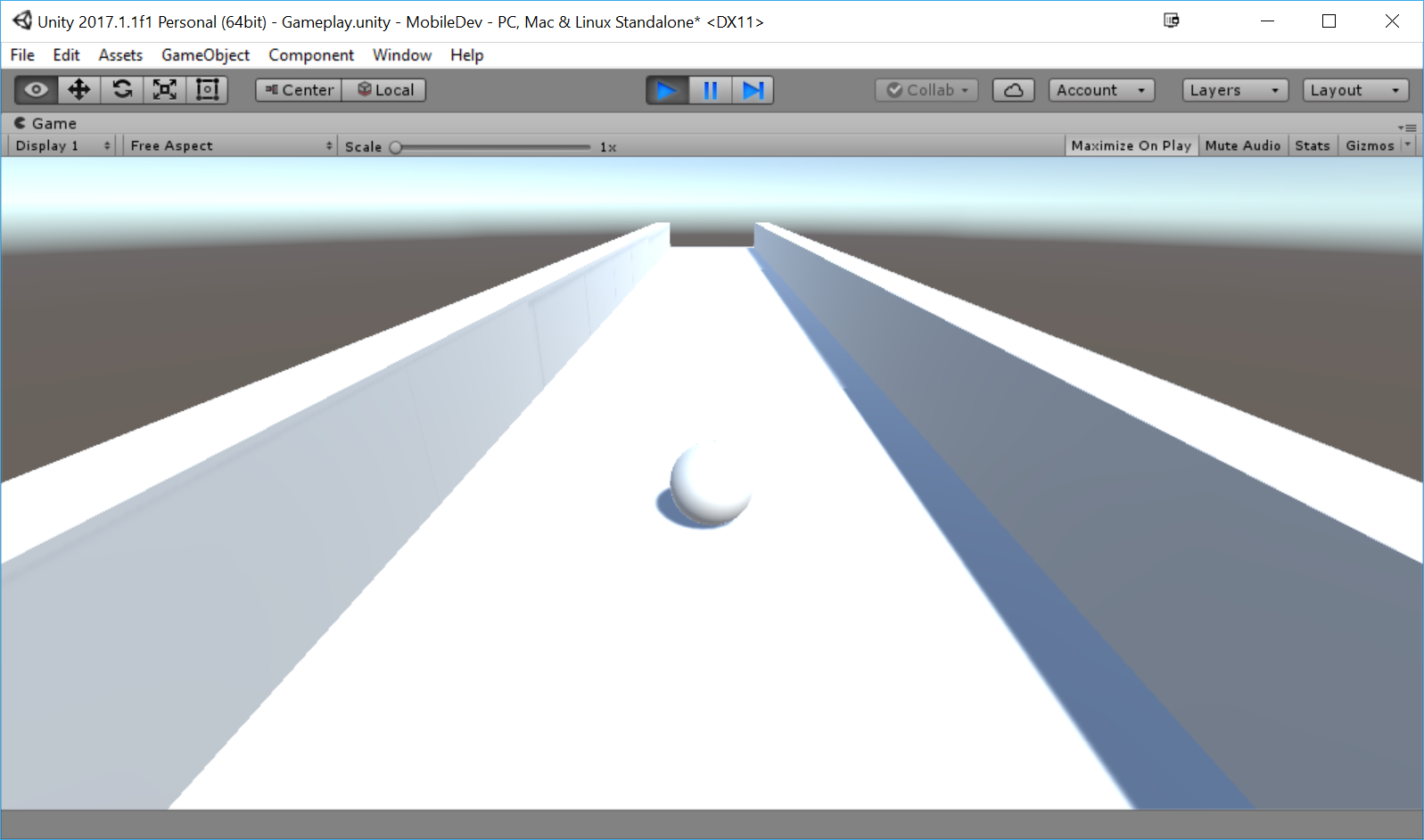
Great, but now we will need to create new objects after these, but we don't want to spawn a crazy number of these at once. It's better that once we reach the end of a tile, we create a new tile and remove it. We'll work on optimizing this more later, but that way we always have around the same number of tiles in the game at one time.
- Go into the
Projectwindow and create a new script calledTileEndBehaviour, using the following code:
using UnityEngine;

/// <summary>
/// Handles spawning a new tile and destroying this one
/// upon the player reaching the end
/// </summary>
public class TileEndBehaviour : MonoBehaviour
{
    [Tooltip("How much time to wait before destroying " +
             "the tile after reaching the end")]
    public float destroyTime = 1.5f;

    void OnTriggerEnter(Collider col)
    {
        // First check if we collided with the player
        if (col.gameObject.GetComponent<PlayerBehaviour>())
        {
            // If we did, spawn a new tile
            GameObject.FindObjectOfType<GameController>().SpawnNextTile();

            // And destroy this entire tile after a short delay
            Destroy(transform.parent.gameObject, destroyTime);
        }
    }
} - Now, to assign it to the prefab, we can go to the
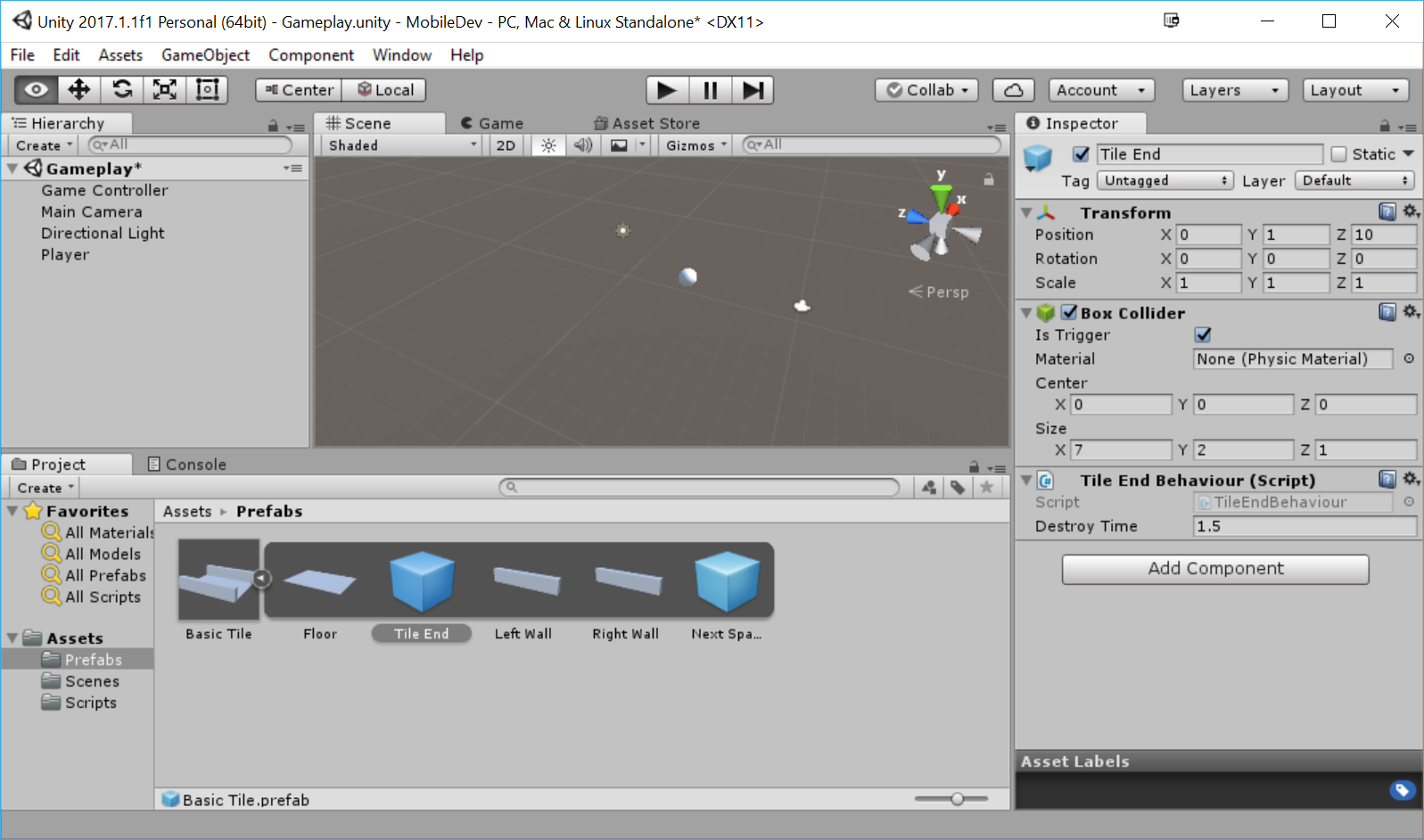
Projectwindow and then go into thePrefabsfolder. From there, click on the arrow beside theBasic Tileto open up its objects and then add aTile End Behaviourcomponent to theTile Endobject:
- Save your scene and play.
You'll note now that as the player continues to move, new tiles will spawn as you continue; if you switch to the Scene tab while playing, you'll see that as the ball passes the tiles they will destroy themselves: