

Installing the MySQL 5.7 database server
The book will be covering some concepts on how Spring 5.0 handles data persistence involving relational database management systems. MySQL 5.7 will be the database server that will be used to create, store, update, and delete records of data.
Getting started
Visit the site http://dev.mysql.com/downloads/mysql/ to download the preferred community server for your projects. MySQL server is available in any operating system platform.
How to do it...
- On the download page, choose the
General Available (GA) Releasestab. - Choose the desired platform through the
Select Platformdropdown. The book will be using the MySQL server for Windows. - Once the Windows platform is chosen, there are other options available for download under the
Other Downloadslink. Choose theWindows (x86, 32-bit) Windows MSI installerfor easy installation. - Afterwards, just click
No thanks, just start my downloads!to download the installer immediately. - After downloading the installer (for example,
mysql-installer-community-5.7.17.0.msi), click the file and start the following wizards. - Choose
Developer Defaultas our server type. - Install all the connectors.
- Use port
3306and set the password topackt. - After installing the MySQL server, proceed with installing the
Samples and Examples scripts. - After finishing the installation, create
MySQL_HOMEin yourclasspathand expose<installation_folder>MySQLMySQL Server 5.7bincommands. - At this point, you are now ready to install the server for database transactions.
How it works...
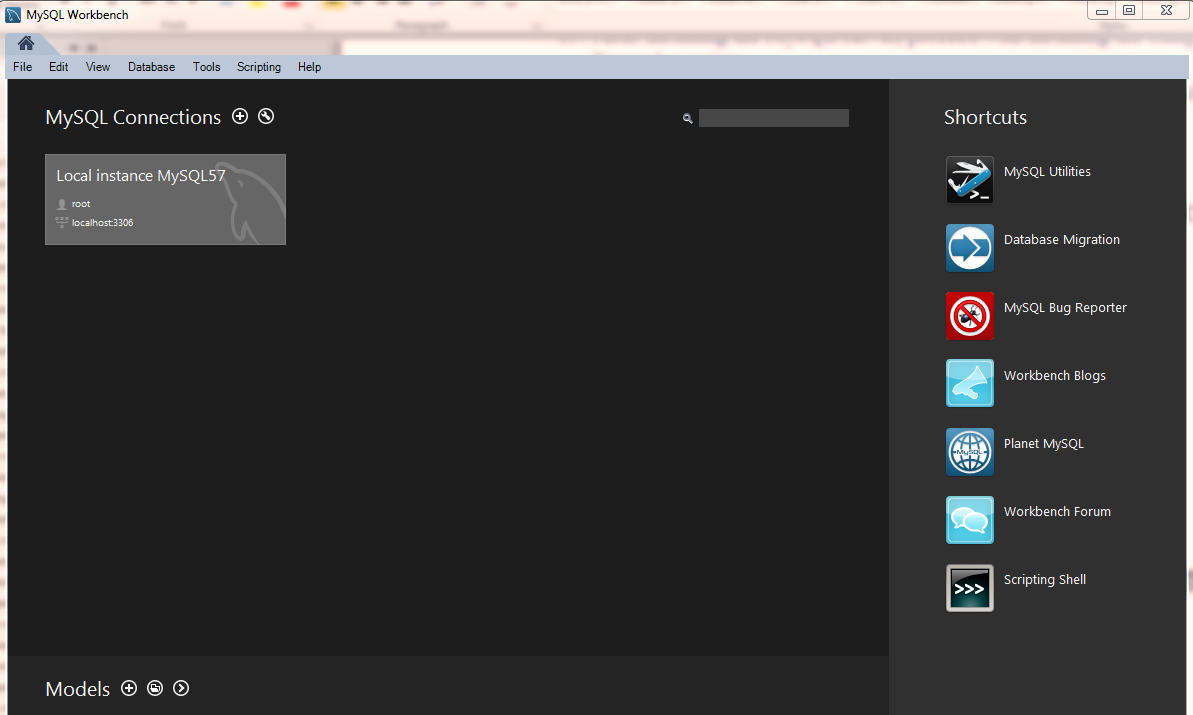
To deal with SQL transactions, we can us the CLI of MySQL or the given GUI-based MySQL Workbench: