

Installing Java Development Kit 1.8
The book will be using JDK 1.8, which has the support to run Spring 5.0. This version of Java supports @FunctionalInterface and lambda expressions, which are necessary concepts being showcased in this framework. A @FunctionalInterface is an interface with exactly one abstract method that may lead to its instantiation through lambda expressions. Lambda expressions are used to implement anonymous inner classes, avoiding too much bulk in the codes.
Moreover, JDK 1.8 has java.util.stream APIs that can work with collections and NIO 2.0, using stream operations such as filter, map, and reduce. These stream APIs work in sequential and parallel executions. In the area of concurrency, this JDK provides some very essential enhancements on ConcurrentHashMap for its forEach, forEachEntry, forEachKey, forEachValue, compute, merge, reduce, and search methods. Also some changes were done on the object creation of CompletableFuture and Executors.
Getting started
All Java JDK installers are downloaded from Oracle's site at http://www.oracle.com/technetwork/java/javase/downloads/index.html.
How to do it...
To download JDK 1.8, perform the following steps:
- Visit the preceding Oracle's page for downloads.
- On that page, click the
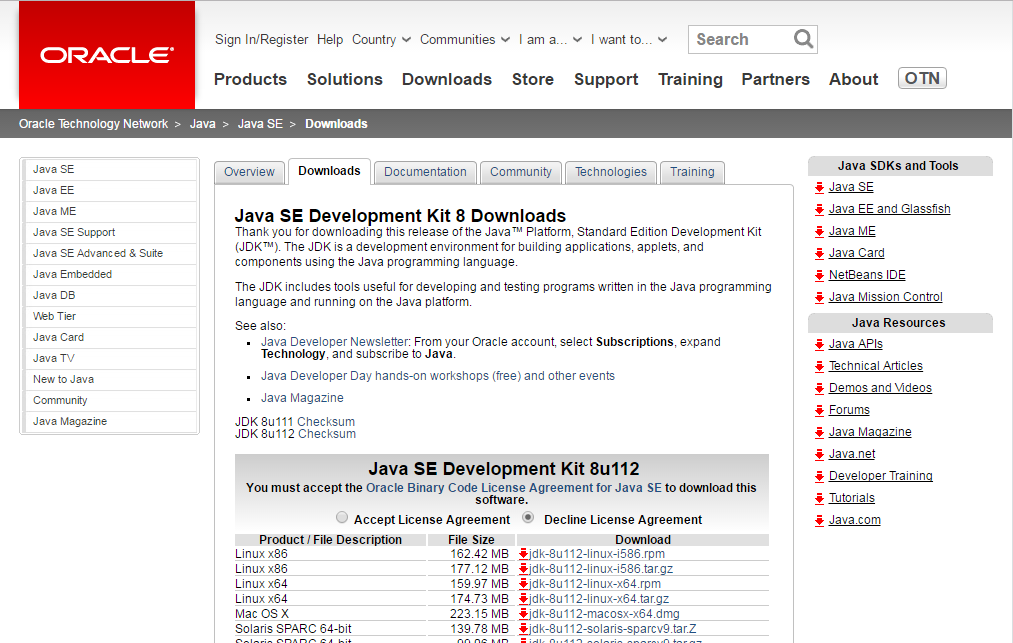
JDK Downloadlink. After the click, you will see the content page for JDK 1.8 installers as shown in the following image:
- Select
Accept License Agreementby clicking its radio button. - Start downloading the JDK depending on the operating system and architecture of your development machine. In the case of this book, we will be choosing the option
jdk-8u112-windows-x64since the operating system used by this book will be 64-bit. - After saving the installer into the filesystem, run the installer and proceed with a series of installation wizards for JDK configuration with the inclusion of some JRE installation to your system.
- This is optional but it is recommended you create an environment variable
JAVA_HOMEfor your newly installed JDK 1.8.112. On Windows operating systems:- Open the
Systemsection of theControl Panel. - Select the
Advanced System Settingslink. Windows 10 will prompt you with aUser Account Controldialog box if you are not an administrator. - Create a system variable
JAVA_HOMEand assign the location of the JDK directory to it. - Look for the path system variable and append the following line:
%JAVA_HOME\%bin.
- Open the
- Verify if all
classpathsettings are created correctly. On Windows, open a new command terminal and run thejavac -versioncommand. This command must be recognized as a valid command; otherwise, check your configuration details again.
How it works...
The installed JDK will be the core language interpreter of Spring 5.0 projects, whether or not they are deployed to a Tomcat 9.x application server through Maven or Gradle. To read more about JDK 1.8, the reference http://www.oracle.com/technetwork/java/javase/8-whats-new-2157071.html will provide you with some information about its highlights and will explain why it is popular nowadays in functional and reactive programming. More detailed concepts on functional programming will be discussed in Chapter 6, Functional Programming.