

Setting up input keys
One more thing that's missing now is adding s into Unity's build in InputManager. To do that, follow these simple steps:
- Open
InputManagerby going toEdit|ProjectSettings|Input. - Increase the input size of
Axisby one. - Select the bottom
Axisand change its settings:
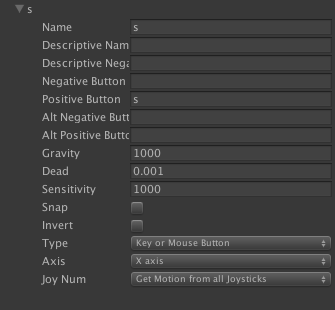
We have a new input button set up and the code that's executed each time the button is pressed. Time to test that. Press Play in Unity and, after Jake drops on the platform, press S on the keyboard. The StartGame() method will be called by Unity just after you press the key. The StartGame() method changes currentGameState to inGame, so our gameplay starts.
So, we have completed the first part of the simple gameplay loop. The user can start the game by pressing the button and the game will start. As we are calling it a loop, it will have to be a closed chain of events. To close the gameplay, we will need to add the GameOver event.
In our simple game, the game over event will be called when the player dies....