

Creating a VSTS build pipeline
After having planned and organized your work and created your Git repository, you should now configure a VSTS build pipeline, which will allow you to do continuous integration of your application:
- Open Visual Studio 2017 and go to the
Team Explorertab, then click on theBuildsbutton:

- Next, click on the
New Build Definitionlink:

- The VSTS website is opened and you are presented with a choice of build definition templates, select the
ASP.NET Coretemplate:

- In the new build definition, enter a name and select your default agent queue. We recommend using
Hosted VS2017:

- For choosing a source repository, click on
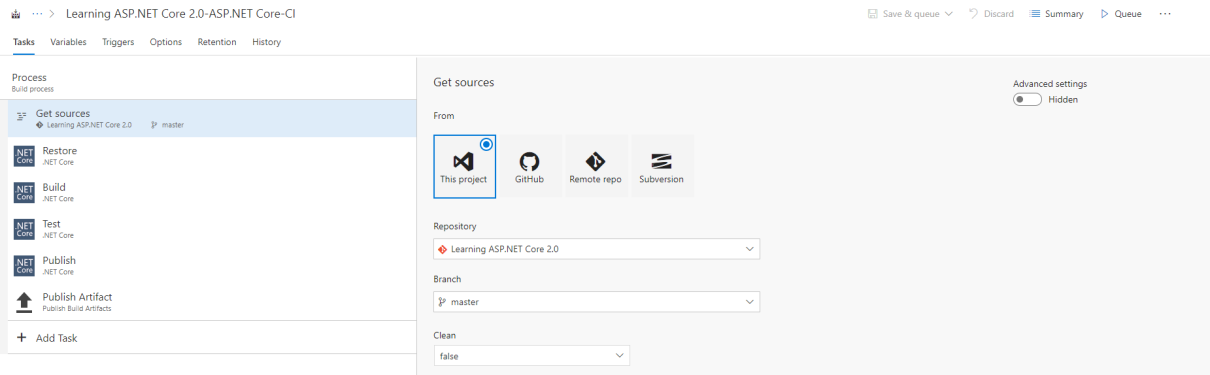
Get sources. For our example, we use the default values (This project,Branch: master,Clean: false):
- To enable continuous integration, click on
Triggersin the build definition menu, then click on theEnable this triggerbutton:
>

- After verifying that the Git repository and master branch have been selected, correctly click on the
SaveorSave & queue...