Search icon CANCEL
Subscription
0
Cart icon
Your Cart (0 item)
Close icon
You have no products in your basket yet
Arrow left icon
Explore Products
Best Sellers
New Releases
Books
Videos
Audiobooks
Learning Hub
Newsletter Hub
Free Learning
Arrow right icon
timer SALE ENDS IN
0 Days
:
00 Hours
:
00 Minutes
:
00 Seconds
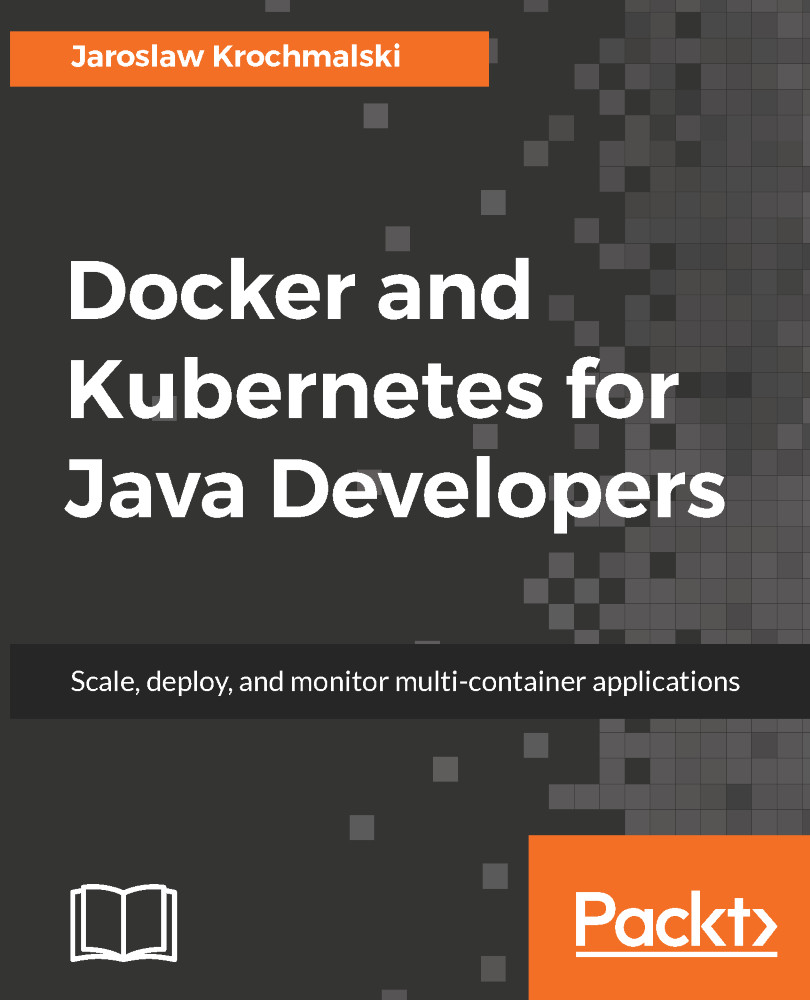
Docker and Kubernetes for Java Developers

Docker and Kubernetes for Java Developers

Scale, deploy, and monitor multi-container applications

R$197.09 R$218.99
By Jaroslaw Krochmalski & Krochmalski
Full star icon Full star icon Full star icon Half star icon Empty star icon
3.5 (4 Ratings)
Pages 318
Published in Aug 2017
Product Type eBook
Edition 1st Edition
ISBN 9781786463906
Docker and Kubernetes for Java Developers

Packt Subscriptions

See our plans and pricing
Modal Close icon
$12.99 billed monthly
Feature tick icon Unlimited access to Packt's library of 6,500+ practical books and videos
Feature tick icon Constantly refreshed with 50+ new titles a month
Feature tick icon Exclusive Early access to books as they're written
Feature tick icon Solve problems while you work with advanced search and reference features
Feature tick icon Offline reading on the mobile app
Feature tick icon Simple pricing, no contract
$129.99 billed annually
Feature tick icon Unlimited access to Packt's library of 6,500+ practical books and videos
Feature tick icon Constantly refreshed with 50+ new titles a month
Feature tick icon Exclusive Early access to books as they're written
Feature tick icon Solve problems while you work with advanced search and reference features
Feature tick icon Offline reading on the mobile app
Feature tick icon Choose a DRM-free eBook or Video every month to keep
Feature tick icon PLUS own as many other DRM-free eBooks or Videos as you like for just R$25 each
Feature tick icon Exclusive print discounts
$179.99 billed in 18 months
Feature tick icon Unlimited access to Packt's library of 6,500+ practical books and videos
Feature tick icon Constantly refreshed with 50+ new titles a month
Feature tick icon Exclusive Early access to books as they're written
Feature tick icon Solve problems while you work with advanced search and reference features
Feature tick icon Offline reading on the mobile app
Feature tick icon Choose a DRM-free eBook or Video every month to keep
Feature tick icon PLUS own as many other DRM-free eBooks or Videos as you like for just R$25 each
Feature tick icon Exclusive print discounts

What do you get with eBook?

Product feature icon Instant access to your Digital eBook purchase
Product feature icon Download this book in EPUB and PDF formats
Product feature icon Access this title in our online reader with advanced features
Product feature icon DRM FREE - Read whenever, wherever and however you want
Table of content icon View table of contents Preview book icon Preview Book

Docker and Kubernetes for Java Developers

Chapter 2. Networking and Persistent Storage

We learned a lot about Docker concepts in the previous chapter. We know that the container is a runtime of an image. It will contain your Java application altogether with all needed dependencies, such as JRE or an application server. But, there are rare cases when the Java application is self-sufficient. It always needs to communicate with other servers (as a database), or expose itself to others (as a web application running on the application server which needs to accept requests coming from the user or from the other applications). It's time to describe ways to open the Docker container to the outside world, networking, and persistent storage. In this chapter, you are going to learn how to configure networking, and expose and map network ports. By doing that, you will enable your Java application to communicate with other containers. Imagine the following scenario: you can have one container running a Tomcat application server with your Java...

Networking


To make your container able to communicate with the outside world, whether another server or another Docker container, Docker provides different ways of configuring networking. Let's begin with the network types which are available for our containers.

Docker network types

There are three different network types Docker delivers out of the box. To list them, execute the docker network ls command:

$ docker network ls

Docker will output the list of available networks containing the unique network identifier, its name, and a driver which powers it behind the scenes:

To have an overview of the differences between various network types, let's describe them now one by one.

Bridge

This is the default network type in Docker. When the Docker service daemon starts, it configures a virtual bridge, named docker0. If you do not specify a network with the docker run -net=<NETWORK> option, the Docker daemon will connect the container to the bridge network by default. Also, if you create a new container...

Networking commands


The parent command for managing networks in Docker is docker network. You can list the whole command set using the docker network help command, as you can see in the following screenshot:

To have a detailed syntax and description of each option available for a specific command, use the -help switch for each of the commands. For example, to get the description of parameters available for docker network create, execute the docker network create -help.

Let's briefly describe each command available:

  • $ docker network ls: This is the command we have been using previously, it simply lists networks available for your containers. It will output the network identifier, its name, the driver being used, and a scope of the network
  • $ docker network create: Creates new network. The full syntax of the command is, docker network create [OPTIONS] NETWORK. We will use the command in a short while
  • $ docker network rm: The dockercnetworkcrm  command simply removes the network
  • $ docker network connect...

Creating and inspecting a network


Let's create a network. We are going to call our network myNetwork. Execute the following command from the shell or command line:

$ docker network create myNetwork

This is the simplest form of the command, and yet it will probably be used the most often. It takes a default driver (we haven't used any option to specify a driver, we will just use the default one, which is bridge). As the output, Docker will print out the identifier of the newly created network:

You will later use this identifier to refer to this network when connecting containers to it or inspecting the network's properties. The last parameter of the command is the network's name, which is a lot more convenient and easier to remember than the ID. The network name in our case is myNetwork. The docker network create command takes more parameters, as shown in the following table:

Option

Description

-d, -driver="bridge"

Driver to manage the network

-aux-address=map[]

Auxiliary IPv4 or IPv6 addresses used...

Connecting a container to the network


Now we have our myNetwork ready, we can run the Docker container and attach it to the network. To launch containers, we are going to user the docker run --net=<NETWORK> option, where the <NETWORK> is the name of one of the default networks or the one you have created yourself. Let's run Apache Tomcat for example, which is an open source implementation of the Java Servlet and JavaServer pages technologies:

docker run -it --net=myNetwork tomcat

It will take a while. The Docker engine will pull all of the Tomcat's image layers from the Docker Hub and then run the Tomcat container. There's another option to attach the network to the container, you can inform Docker that you would like the container to connect to the same network as other containers use. This way, instead of specifying a network explicitly, you just instruct Docker that you want two containers run on the same network. To do this, use the container: prefix, as in the following example...

Exposing ports and mapping ports


A common scenario is usually when you want your containerized application to accept incoming connections, either from other containers or from outside of Docker. It can be an application server listening on port 80 or a database accepting incoming requests.

An image can expose ports. Exposing ports means that your containerized application will listen on an exposed port. As an example, the Tomcat application server will listen on the port 8080 by default. All containers running on the same host and on the same network can communicate with Tomcat on this port. Exposing a port can be done in two ways. It can be either in the Dockerfile with the EXPOSE instruction (we will do this in the chapter about creating images later) or in the docker run command using the --expose option. Take this official Tomcat image Dockerfile fragment (note that it has been shortened for clarity of the example):

FROM openjdk:8-jre-alpineENV CATALINA_HOME /usr/local/tomcatENV PATH ...

Persistent storage


As you remember from Chapter 1, Introduction to Docker, the Docker container filesystem is kind of temporary by default. If you start up a Docker image (that is, run the container), you'll end up with a read-write layer on top of the layers stack. You can create, modify, and delete files as you wish; if you commit the changes back into the image, they will become persisted. This is a great feature if you want to create a complete setup of your application in the image, altogether with all its environment. But, this is not very convenient when it comes to storing and retrieving data. The best option would be to separate the container life cycle and your application from the data. Ideally, you would probably want to keep these separate, so that the data generated (or being used) by your application is not destroyed or tied to the container life cycle and can thus be reused.

The perfect example would be a web application server: the Docker image contains web server software...

Volume-related commands


The basis of volume-related commands is docker volume. The commands are as follows:

  • $docker volume create: Creates a volume
  • $ docker volume inspect: Displays detailed information on one or more volumes
  • $docker volume ls: Lists volumes
  • $ docker volume rm: removes one or more volumes
  • $ docker volume prune: removes all unused volumes, which is all volumes that are no longer mapped into any container

Similar to network-related commands, you can get the detailed description and all the possible options for each command if you execute it with the -help switch, for example: docker volume create -help. Let's begin with creating a volume.

Creating a volume


As you remember from Chapter 1, Introduction to Docker, there's a settings screen in Docker for Windows or Docker for Mac, that allows us to specify which drives Docker can have access to. For a start, let's mark drive D in our Docker for Windows to make it available for Docker containers:

For the purpose of our volume examples, I've created a docker_volumes/volume1 directory on my D drive and created an empty data.txt file inside:

There are two ways to create volumes. The first one is to specify the -v option when running an image. Let's run the busybox image we already know and, at the same time, create a volume for our data:

$ docker run -v d:/docker_volumes/volume1:/volume -it busybox

In the previous command, we have created a volume using the -v switch and instructed Docker that the host directory d:/docker_volumes/volume1 should be mapped into the /volume directory in the running container. If we now list the contents of the /volume directory in the running busybox container...

Removing a volume


The same as with creating volumes, there are two ways of removing a volume in Docker. Firstly, you can remove a volume by referencing a container's name and executing the docker rm -v command:

$ docker rm -v <containerName or ID>

Docker will not warn you, when removing a container without providing the -v option, to delete its volumes. As a result, you will have dangling volumes—volumes that are no longer referenced by a container. As you remember, they are easy to get rid of using the docker volume prune command.

Another option to remove the volume is by using the docker volume rm command:

$ docker volume rm <volumeName or ID>

If the volume happens to be in use by the container, Docker Engine will not allow you to delete it and will give you a warning message:

As you can see, creating, sharing, and removing volumes in Docker is not that tricky. It's very flexible and allows the creating a setup you will need for your applications. But there's more to this flexibility...

Volume drivers


The same as with network driver plugins, volume plugins extend the capabilities of the Docker engine and enable integration with other types of storage. There are a ton of ready to use plugins available for free on the Internet; you can find a list on Docker's GitHub page. Some of them include:

  • Docker volume driver for Azure file storage: This is a Docker volume driver which uses Azure file storage to mount file shares on the cloud to Docker containers as volumes. It uses the network file sharing (SMB/CIFS protocols) capabilities of Azure file storage. You can create Docker containers that can migrate from one host to another seamlessly or share volumes among multiple containers running on different hosts.
  • IPFS: Open source volume plugin that allows the use of an IPFS filesystem as a volume. IPFS is a very interesting and promising storage system; it makes it possible to distribute high volumes of data with high efficiency. It provides deduplication, high performance, and clustered...

Summary


In this chapter, we have learned about Docker networking and storage volume features. We know how to differentiate between various network types, how to create a network, and expose and map network ports.

We've been through volume-related commands and can now create or remove a volume. In Chapter 3, Working with Microservices, we are going to focus on the software that we are going to deploy using Docker and Kubernetes, and later, Java microservices.

Left arrow icon Right arrow icon
Download code icon Download Code

Key Benefits

Master using Docker and Kubernetes to build, deploy and manage Java applications in a jiff
Learn how to create your own Docker image and customize your own cluster using Kubernetes
Empower the journey from development to production using this practical guide.

What You Will Learn

Who Is This Book For?

The book is aimed at Java developers who are eager to build, deploy, and manage applications very quickly using container technology. They need have no knowledge of Docker and Kubernetes.

Book Description

Imagine creating and testing Java EE applications on Apache Tomcat Server or Wildfly Application server in minutes along with deploying and managing Java applications swiftly. Sounds too good to be true? But you have a reason to cheer as such scenarios are only possible by leveraging Docker and Kubernetes. This book will start by introducing Docker and delve deep into its networking and persistent storage concepts. You will then proceed to learn how to refactor monolith application into separate services by building an application and then packaging it into Docker containers. Next, you will create an image containing Java Enterprise Application and later run it using Docker. Moving on, the book will focus on Kubernetes and its features and you will learn to deploy a Java application to Kubernetes using Maven and monitor a Java application in production. By the end of the book, you will get hands-on with some more advanced topics to further extend your knowledge about Docker and Kubernetes.
Category:
Languages:
Concepts:
Tools:

Frequently bought together


Stars icon
Total R$ 852.97
Getting Started with Kubernetes, Second Edition
R$272.99
Docker and Kubernetes for Java Developers
R$272.99
DevOps with Kubernetes
R$306.99
Total R$ 852.97 Stars icon

Table of Contents

(11 Chapters)
Introduction to Docker Chevron down icon Chevron up icon
Networking and Persistent Storage Chevron down icon Chevron up icon
Working with Microservices Chevron down icon Chevron up icon
Creating Java Microservices Chevron down icon Chevron up icon
Creating Images with Java Applications Chevron down icon Chevron up icon
Running Containers with Java Applications Chevron down icon Chevron up icon
Introduction to Kubernetes Chevron down icon Chevron up icon
Using Kubernetes with Java Chevron down icon Chevron up icon
Working with the Kubernetes API Chevron down icon Chevron up icon
Deploying Java on Kubernetes in the Cloud Chevron down icon Chevron up icon
More Resources Chevron down icon Chevron up icon

Customer reviews

Rating distribution
Full star icon Full star icon Full star icon Half star icon Empty star icon
3.5
(4 Ratings)
5 star 25%
4 star 0%
3 star 75%
2 star 0%
1 star 0%
A reader in Denver Apr 05, 2019
Full star icon Full star icon Full star icon Full star icon Full star icon
5
The author gives just what you need to get a Java app deployed on Kubernetes. He should add a little more like how to access your app when it is running in Docker and how to deploy and access your app. in Kubernetes, but this information is easily found on the web. His example of how to use the Kubernetes Dashboard is outdated, but that is the nature of a rapidly developing technology like Kubernetes. The current docs tell you what you need to know.I hope Jaroslaw Krochmalski writes more about Kubernetes.
Amazon Verified review Amazon
Amazon Customer Apr 30, 2018
Full star icon Full star icon Full star icon Empty star icon Empty star icon
3
Covers Docker well, I wish it went more into Kubernetes. It uses a web server example.
Amazon Verified review Amazon
Kuldip Mar 27, 2020
Full star icon Full star icon Full star icon Empty star icon Empty star icon
3
Code doesn't compile in examples.
Amazon Verified review Amazon
Nirmal Dec 31, 2017
Full star icon Full star icon Full star icon Empty star icon Empty star icon
3
Lacks of presentation and crispness
Amazon Verified review Amazon
Get free access to Packt library with over 7500+ books and video courses for 7 days!
Start Free Trial

FAQs

How do I buy and download an eBook? Chevron down icon Chevron up icon

Where there is an eBook version of a title available, you can buy it from the book details for that title. Add either the standalone eBook or the eBook and print book bundle to your shopping cart. Your eBook will show in your cart as a product on its own. After completing checkout and payment in the normal way, you will receive your receipt on the screen containing a link to a personalised PDF download file. This link will remain active for 30 days. You can download backup copies of the file by logging in to your account at any time.

If you already have Adobe reader installed, then clicking on the link will download and open the PDF file directly. If you don't, then save the PDF file on your machine and download the Reader to view it.

Please Note: Packt eBooks are non-returnable and non-refundable.

Packt eBook and Licensing When you buy an eBook from Packt Publishing, completing your purchase means you accept the terms of our licence agreement. Please read the full text of the agreement. In it we have tried to balance the need for the ebook to be usable for you the reader with our needs to protect the rights of us as Publishers and of our authors. In summary, the agreement says:

  • You may make copies of your eBook for your own use onto any machine
  • You may not pass copies of the eBook on to anyone else
How can I make a purchase on your website? Chevron down icon Chevron up icon

If you want to purchase a video course, eBook or Bundle (Print+eBook) please follow below steps:

  1. Register on our website using your email address and the password.
  2. Search for the title by name or ISBN using the search option.
  3. Select the title you want to purchase.
  4. Choose the format you wish to purchase the title in; if you order the Print Book, you get a free eBook copy of the same title. 
  5. Proceed with the checkout process (payment to be made using Credit Card, Debit Cart, or PayPal)
Where can I access support around an eBook? Chevron down icon Chevron up icon
  • If you experience a problem with using or installing Adobe Reader, the contact Adobe directly.
  • To view the errata for the book, see www.packtpub.com/support and view the pages for the title you have.
  • To view your account details or to download a new copy of the book go to www.packtpub.com/account
  • To contact us directly if a problem is not resolved, use www.packtpub.com/contact-us
What eBook formats do Packt support? Chevron down icon Chevron up icon

Our eBooks are currently available in a variety of formats such as PDF and ePubs. In the future, this may well change with trends and development in technology, but please note that our PDFs are not Adobe eBook Reader format, which has greater restrictions on security.

You will need to use Adobe Reader v9 or later in order to read Packt's PDF eBooks.

What are the benefits of eBooks? Chevron down icon Chevron up icon
  • You can get the information you need immediately
  • You can easily take them with you on a laptop
  • You can download them an unlimited number of times
  • You can print them out
  • They are copy-paste enabled
  • They are searchable
  • There is no password protection
  • They are lower price than print
  • They save resources and space
What is an eBook? Chevron down icon Chevron up icon

Packt eBooks are a complete electronic version of the print edition, available in PDF and ePub formats. Every piece of content down to the page numbering is the same. Because we save the costs of printing and shipping the book to you, we are able to offer eBooks at a lower cost than print editions.

When you have purchased an eBook, simply login to your account and click on the link in Your Download Area. We recommend you saving the file to your hard drive before opening it.

For optimal viewing of our eBooks, we recommend you download and install the free Adobe Reader version 9.

Modal Close icon

Loading shipping options...

Unable to load shipping costs. Please try again later.

Estimated Shipping Cost

Deliver to -
Modal Close icon
Modal Close icon