


Using the statistics – endpoints menu
In this recipe, we will learn how to get endpoint statistics information of the captured data.
Getting ready
Start Wireshark and click on Statistics.
How to do it...
To view the endpoint statistics, follow these steps:
- From the
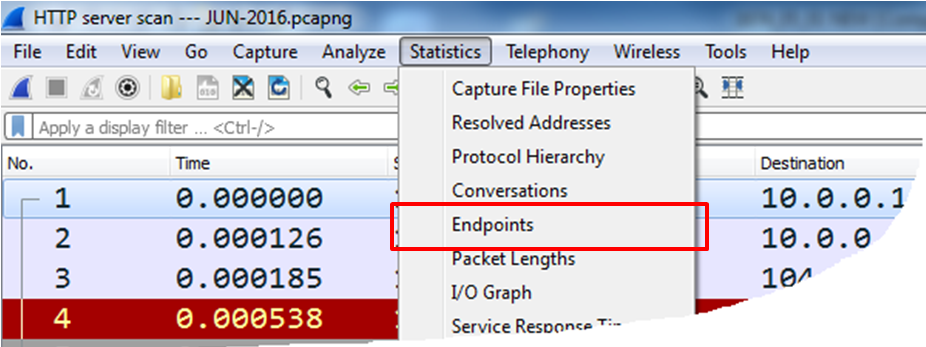
Statisticsmenu, chooseEndpoints:
- The following window will come up:
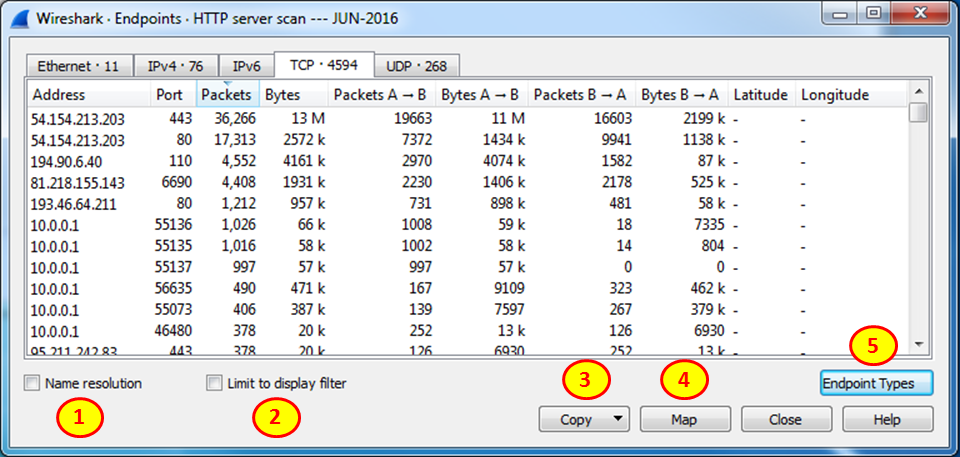
In this window, you will be able to see layer 2, 3, and 4 endpoints, which is Ethernet, IP, and TCP or UDP.
From the left-hand side of the window you can see (here is an example for the TCP tab):
- Endpoint IP address and port number on this host
- Total packets sent, and bytes received from and to this host
- Packets to the host (
Packets A → B) and bytes to host (Bytes A → B) - Packets to the host (
Packets B → A) and bytes to host (Bytes B → A) - The
LatitudeandLongitudecolumns applicable with the GeoIP configured as described in Chapter 10,Network Layer Protocols and Operations.
At the bottom of the window we have the following checkboxes:
Name resolution: Provide name resolution...