

Installing Metasploitable
Metasploitable is a key component of our testing environment. It is based on the Ubuntu Linux operating system and is made specifically exploitable for penetration testing purposes. This VM should never be exposed directly to the internet, and, for our purposes, we will use the host-only network to bind to.
Getting ready
Before you start, ensure the following prerequisites:
- The VirtualBox hypervisor is running
- The Kali Linux VM is shut down
- You download the Metasploitable image from https://sourceforge.net/projects/metasploitable/files/Metasploitable2/
- Take note that the default username, and the password is
msfadminfor both
How to do it...
The installation of Metasploitable is done in the following manner:
- Start by unzipping the Metasploitable ZIP (at the time of publication this was
metasploitable-linux-2.0.0.zip) file that you previously downloaded. - Change the directory name that was extracted to
metasploitable. - Find where your main VirtualBox storage is.
- Windows default:
c:\users\<username>\virtualBox VMs - Mac default:
/users/<username>/VirtualBox VMs
Note
You should see a directory under the main path for the Kali Linux VM you installed earlier.
- In this directory, create a new folder called
Virtual Disks. This will make the following path:
...\VirtualBox VMs\Virtual Disks.
- Move the
metasploitabledirectory that was created when you unzipped the file earlier under the\Virtual Disks\directory you created. - Open the VirtualBox manager application, and select
Newfrom the top-left corner. To quicken the installation if we are not in expert mode, let's select it by clicking onExpert Mode at the bottom.
Note
You will know you are in Expert Mode if you see an option for Guided Mode at the bottom.
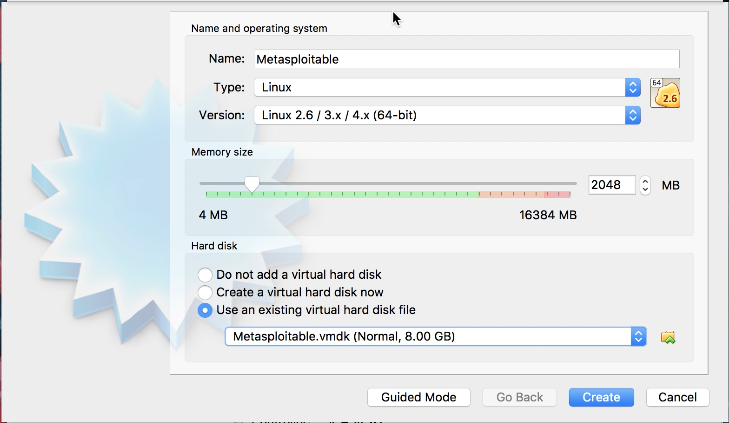
- Let's name our VM
Metasploitable. SelectTypeasLinuxandVersionasLinux 2.6 / 3.x / 4.x (64-bit), enter2048for the memory size. - Select
Use an existing virtual hard disk file, and click on the file icon on the right; and browse for themetasploitable.vmdkfile under the directory from the prior step; then click onCreate. - We will now be brought back to the main VM VirtualBox manager screen. Click on the
MetasploitableVM to highlight it, and then click onSettings.
- Click on
Networkand, forAdapter 1, select theHost-only Adapterand theNameasvboxnet0; lastly, click onOK:
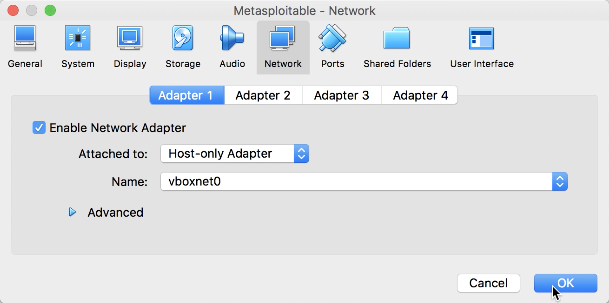
Metasploitable - network dialog
- You will now be brought back to the main VirtualBox manager screen. Click on
Metasplotableto highlight it and click onStart. - Once the VM is started, you will be brought to the main login screen:
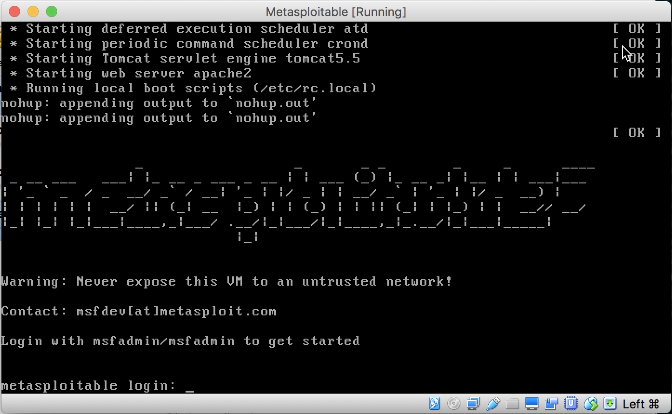
Metasploitable main login screen
Note
To shut down this VM, you have to log in and issue the command, sudo shutdown -h now. Although the VM itself shuts down, it will not end the VirtualBox session. You must select the Red X at the top of the screen. This will provide a dialog box; select the radio button Power off the machine and click on Ok.