

Creating a task flow
Task flows can be created by following these steps in Dynamics 365:
- Go to
Settings|Processes:
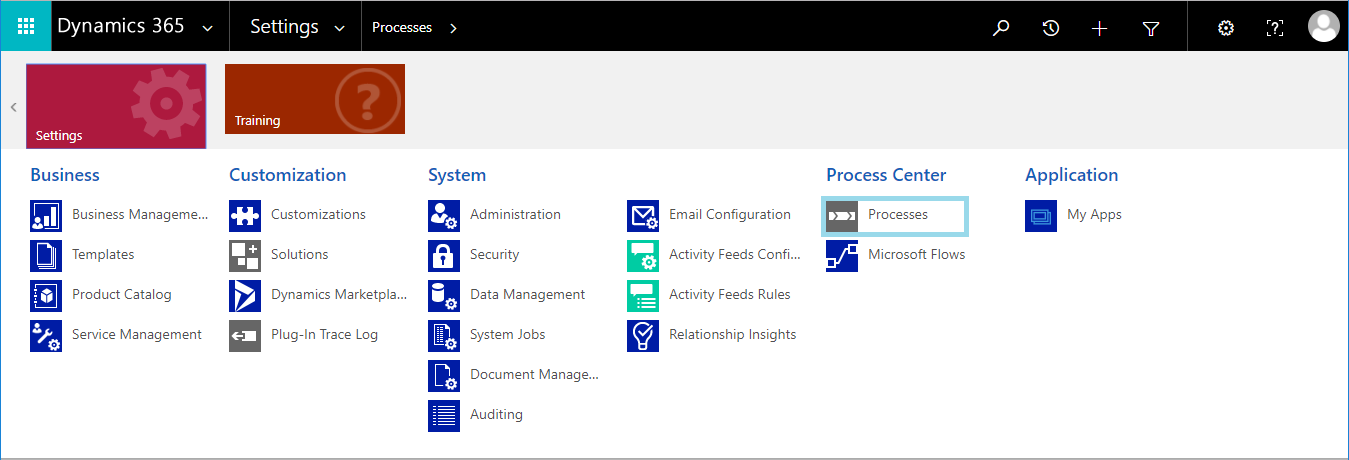
- On the
Actionstoolbar, clickNew:

- Go to the
Create Processdialog box, and select theRun process as a task flowoption:
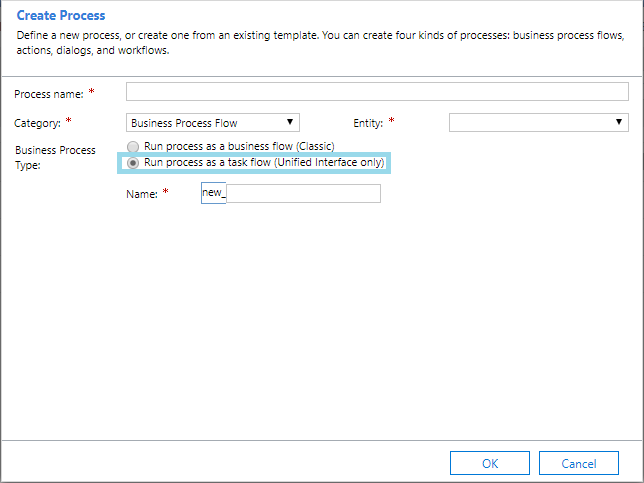
- Click on
OKand Task Flow Designer will open in a new window, which will appear similar to the Business Process Flow designer. - Go to the right-hand side of the screen, drag the
Componentstab from page and post which you can drop it on canvas:
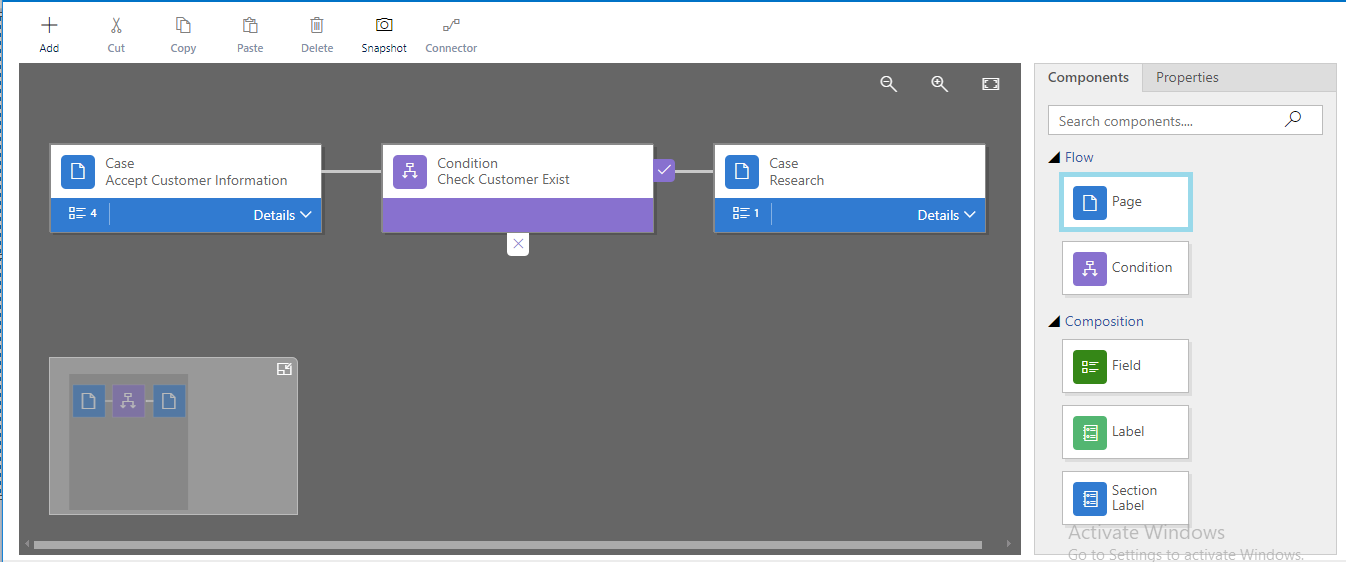
- To add a name to a page, click on a
Pagein thePropertiestab, type a new name, and click theApplybutton:
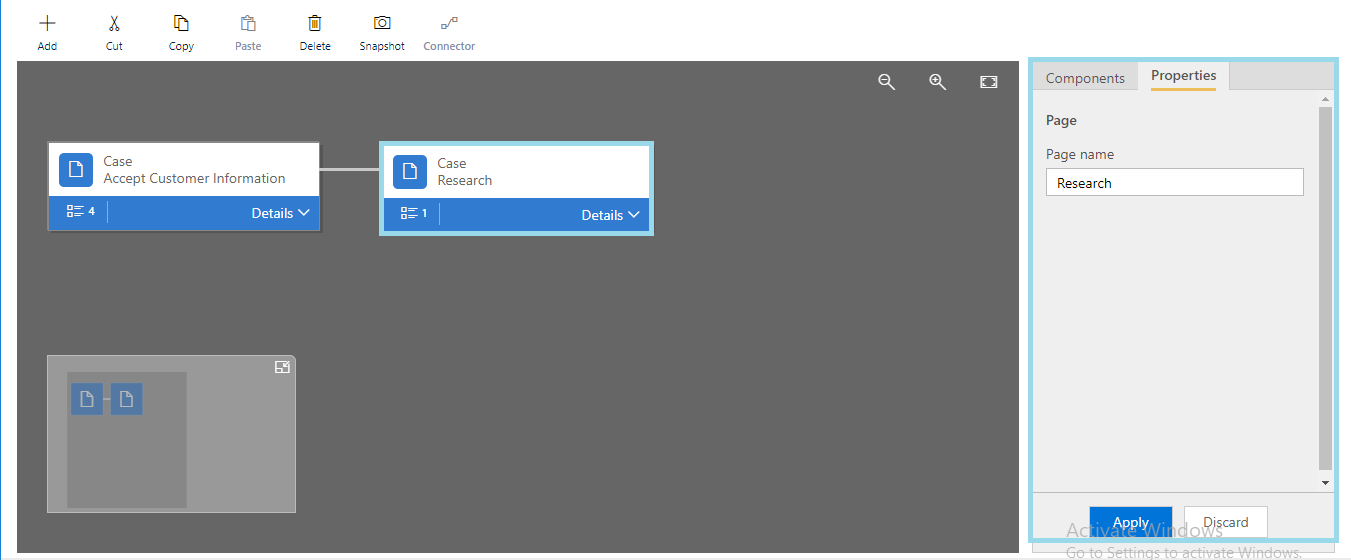
- To add a branch to the task flow, drag the
Conditioncomponent from theComponentstab and drop it on the+
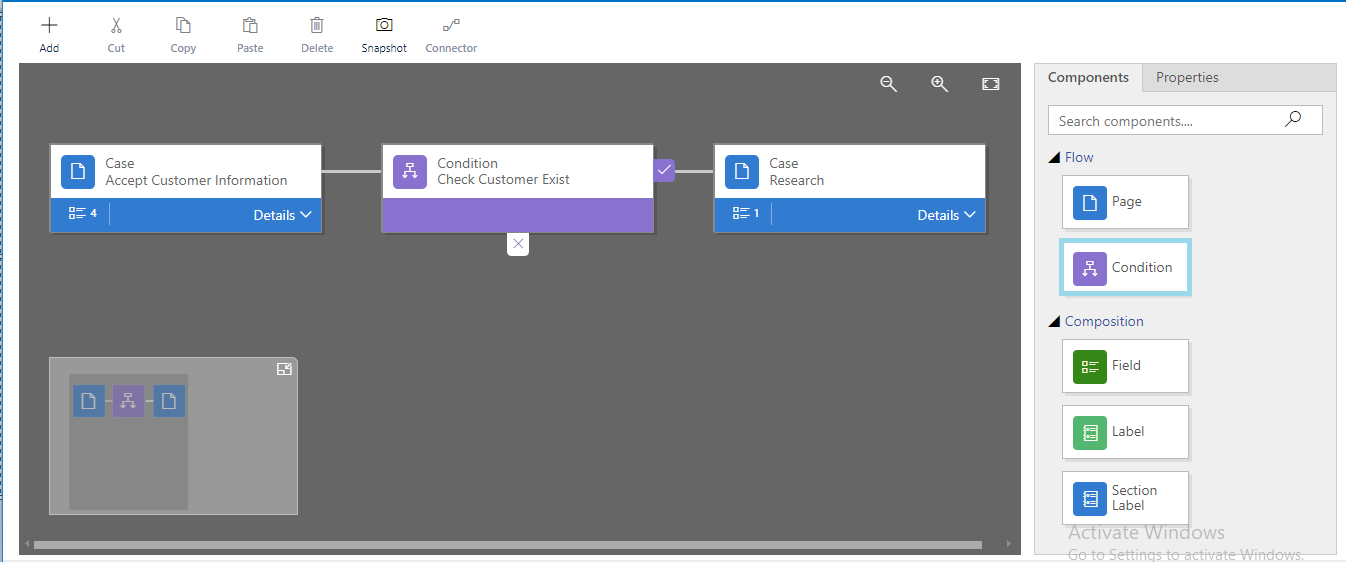
- To set properties for the condition, click on the
Condition, and set the properties in thePropertiestab:
1. Select source entity
2. Select fields from the entity that needs to be checked in the condition
3. Select the operator and the value to be compared
4. Then click on the Apply...